
◉
Discover
Stream discovery
See active channels ranked by reported viewer count, apply game/title/tag filters, and select authorized streams for recording.
Explore discovery →GTA Clip Studio helps creators discover streams, capture footage they are authorized to use, generate vertical captioned clips, and manage publishing from one Windows desktop workspace.
Windows 11 · ZIP download via Google Drive. Extract all files, then run the installer.
Publishing is subject to creator permission, platform access and account-specific limits. TikTok public posting requires official app approval and creator consent.
Visit the pages below for a detailed, public explanation of what each feature does and the permissions it requires.
See active channels ranked by reported viewer count, apply game/title/tag filters, and select authorized streams for recording.
Explore discovery →Generate short 9:16 H.264 MP4 highlights and optional speech-based captions for social video.
See clip creation →Review clips and connect supported YouTube, Instagram, or TikTok accounts through each platform's official permissions.
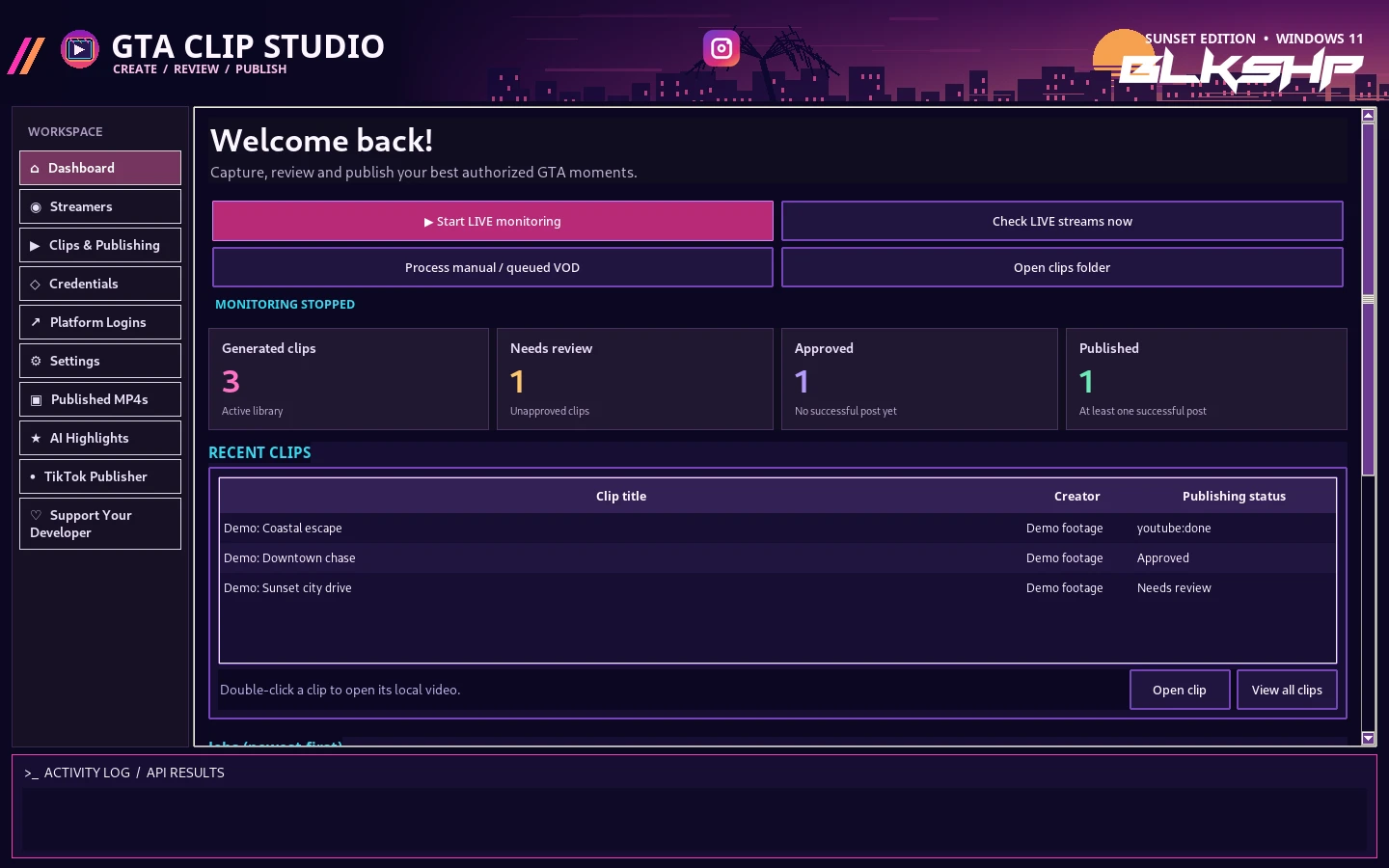
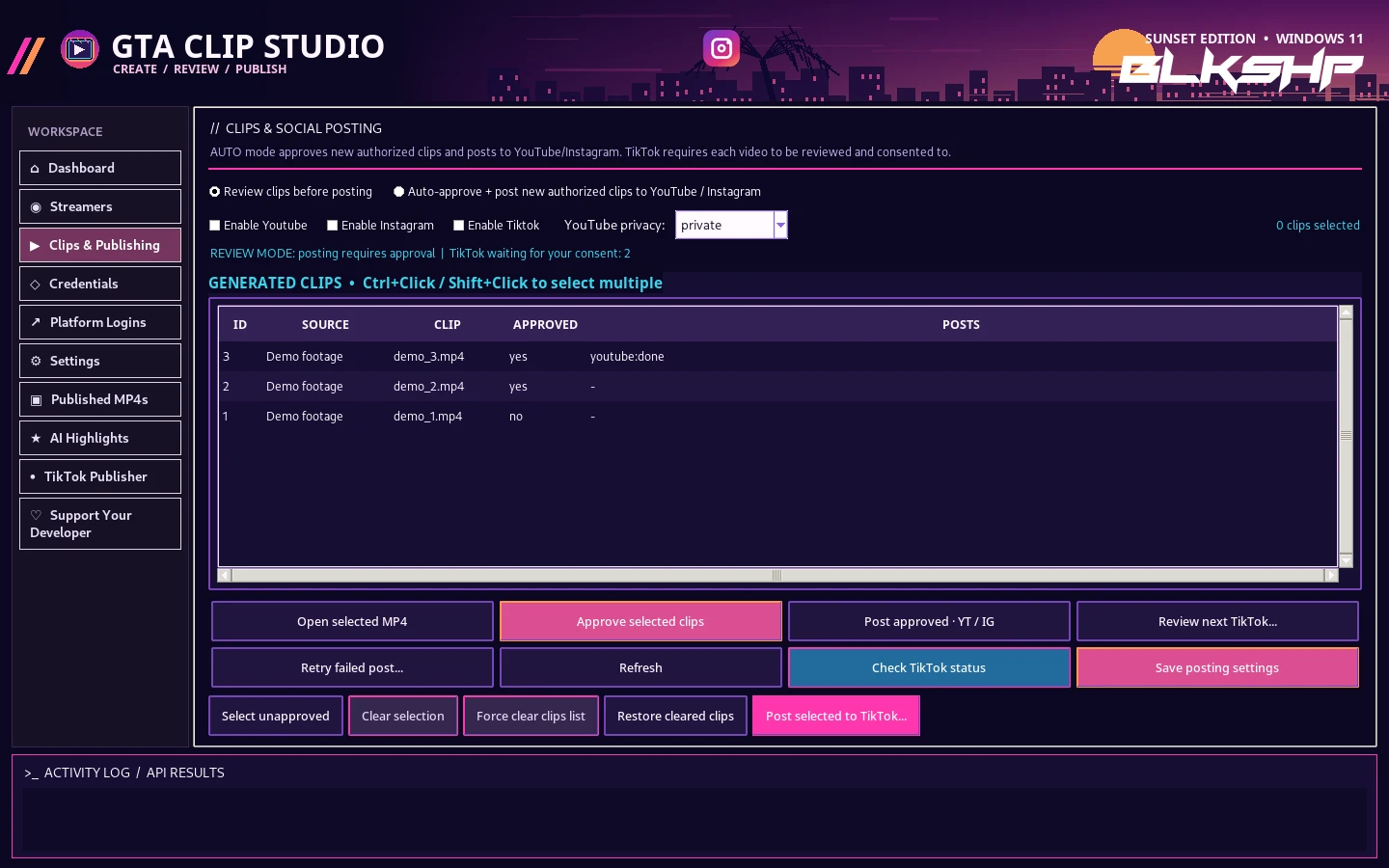
Review integrations →The redesigned interface brings navigation, clip review, and publishing controls into a single workspace. The product previews use sample records captured in a local test environment running the current BETA source; actual clip counts depend on your library.
Filter for a game or tag and confirm footage licensing.
Record permitted streams and create vertical captions.
Preview, approve, or decline individual outputs.
Submit clips through approved APIs with required consent.
Read setup requirements, permission safeguards, common errors, account-connection details, and steps to disconnect accounts or delete locally stored data.